You don't have to connect anything
You can build your register by ticking the common AI tools you use, adding systems by hand, and asking staff to report what they use. Connecting an account adds automatic discovery on top.
Who can connect
Only an Custodry admin can connect or disconnect an account. That person also needs to be an administrator of the Microsoft, Google or AWS account being connected. It is done once for the whole organisation, not by each user.
What happens after
Custodry scans once a day, and you can select Sync now at any time. Each AI system it finds is added to your register marked Observed, ready for you to assess and approve.
Connect Microsoft 365
Finds the apps registered in your Microsoft 365 account (Entra ID), such as Copilot and ChatGPT.
- Who does this
- A Microsoft 365 administrator who can approve app permissions (usually a Global Administrator).
- Time needed
- About 2 minutes
- 1
In Custodry, open Settings, then Cloud connectors.
- 2
On the Microsoft 365 card, select Connect Microsoft 365.
- 3
Sign in with your Microsoft administrator account.
- 4
Microsoft shows the permissions Custodry is asking for. Review them and select Accept.
- 5
You return to Custodry. The card shows Connected and the first scan runs straight away.
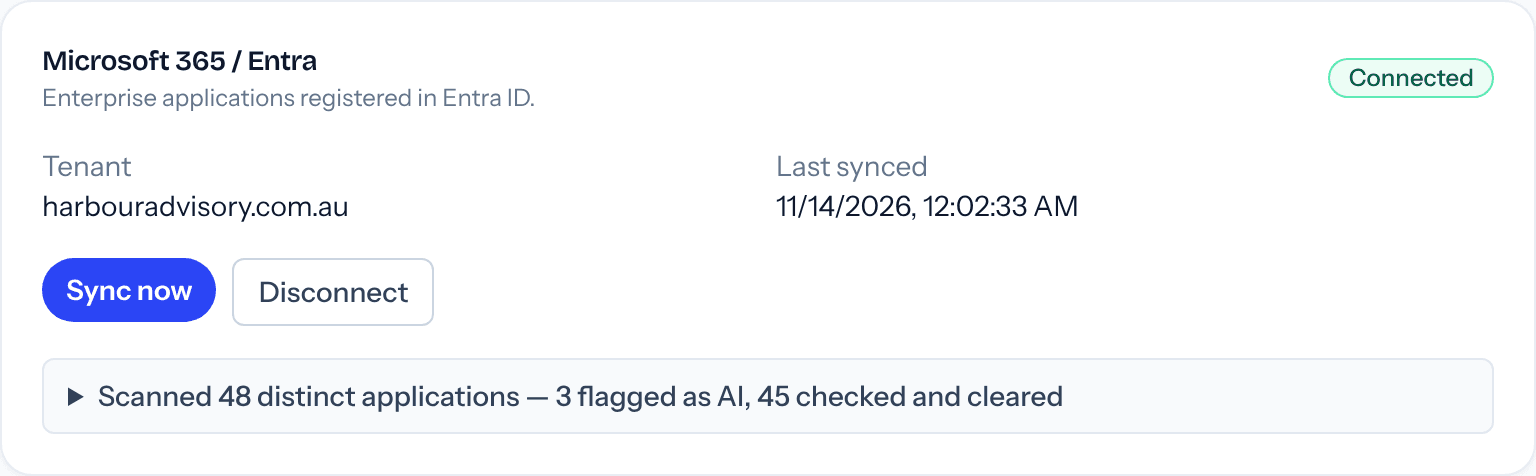
What Custodry can see
- The names and publishers of the apps registered in your Microsoft 365 account
- Your organisation's name
Custodry does not read emails, files, Teams chats or anything your staff type into an AI tool.
If something goes wrong
- Microsoft says I need admin approval
- Your account can't approve app permissions. Ask your Microsoft 365 administrator to sign in to Custodry and connect, or to approve the request.
- The card still says Not connected
- The sign-in was cancelled or timed out. Select Connect Microsoft 365 again and finish the Accept step.
Connect Google Workspace
Finds the third-party apps your staff have signed in to with their work Google account.
- Who does this
- A Google Workspace super admin.
- Time needed
- About 2 minutes
- 1
In Custodry, open Settings, then Cloud connectors.
- 2
On the Google Workspace card, select Connect Google Workspace.
- 3
Sign in with your Google Workspace super admin account.
- 4
Google shows the permission Custodry is asking for (view audit reports). Select Allow.
- 5
You return to Custodry. The card shows Connected and the first scan runs straight away.
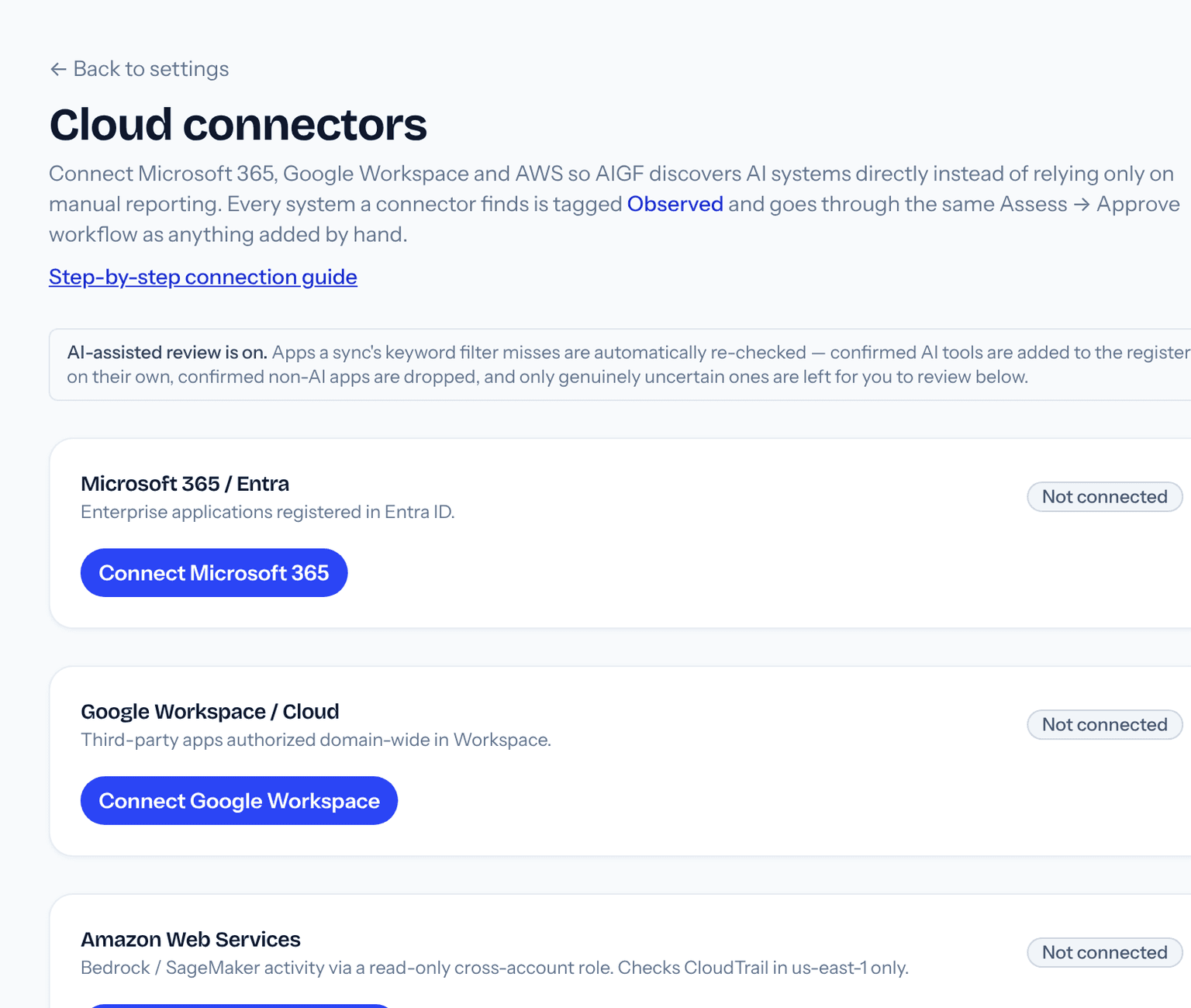
What Custodry can see
- Which third-party apps people in your organisation have authorised with their work Google account
Custodry does not read Gmail, Drive files, calendars or documents.
If something goes wrong
- It connects, but the sync fails
- The Google account you signed in with is not a super admin. Disconnect, then connect again with a super admin account.
- No apps were found
- Google only reports apps that staff have authorised recently. If nobody has signed in to a third-party app with their work account, the scan has nothing to show yet.
Connect Amazon Web Services
Finds use of Amazon's AI services (Bedrock and SageMaker) in your AWS account.
- Who does this
- Someone who can create IAM roles in your AWS account. Most small businesses only need this if a developer or IT provider has set up AWS for them.
- Time needed
- About 10 minutes
- 1
In Custodry, open Settings, then Cloud connectors.
- 2
On the Amazon Web Services card, select Generate connection details. Custodry shows a trust policy, an account ID and an External ID that is unique to your organisation.
- 3
In the AWS console, open IAM, then Roles, then Create role.
- 4
Choose Custom trust policy, delete what is in the box, and paste the trust policy copied from Custodry. Select Next.
- 5
Tick two permission policies: SecurityAudit and AWSCloudTrail_ReadOnlyAccess. Select Next.
- 6
Name the role CustodryReadOnly and select Create role.
- 7
Open the new role and copy its ARN. It starts with arn:aws:iam:: and ends with :role/CustodryReadOnly.
- 8
Back in Custodry, paste the ARN into the Role ARN box and select Verify & connect.
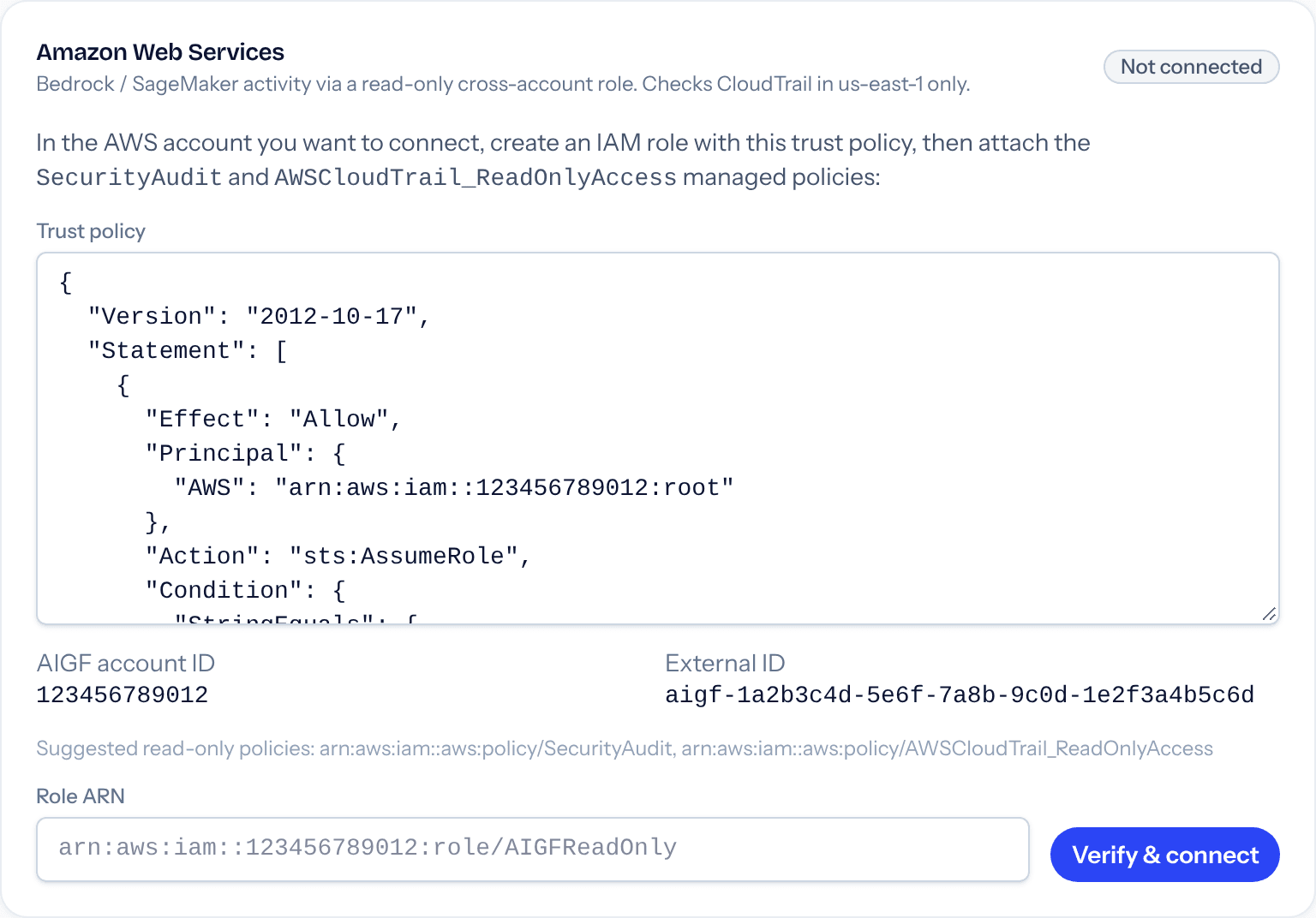
What Custodry can see
- Activity records (CloudTrail) showing that Bedrock or SageMaker was used
- Read-only account configuration covered by the SecurityAudit policy
Custodry cannot change anything in your AWS account, and it never holds a password or access key for it. Access goes through the role you created, which you can delete at any time.
If something goes wrong
- Verify & connect shows an error
- Check that you pasted the whole trust policy, including the External ID line, and that you copied the ARN of the role (not of a policy or a user).
- It connects but finds nothing
- Custodry currently checks the US East (N. Virginia) region only. Bedrock or SageMaker use in other regions, including Sydney, is not found yet.
Disconnecting
Open Settings, then Cloud connectors, and select Disconnect on the card. Custodry stops scanning that account. Systems already in your register stay there. For AWS, also delete the CustodryReadOnly role in your AWS account.
Need a hand?
Email info@aigf.com.au and tell us which account you are connecting and what you see on screen.
Start your AI register